The Netflix app on iPhone and iPad looks simple at first. Most people open the app, choose a movie or TV show, and start watching. However, many useful settings and tools are hidden inside the app. These features can improve video quality, audio quality, download quality, and even help solve streaming problems.
Many users watch Netflix with the default settings. Because of that, they may miss better HDR video quality, use more mobile data than necessary, or struggle to hear dialogue clearly during movies. This guide goes beyond the basic settings and explains some of the hidden Netflix features available on iOS devices.
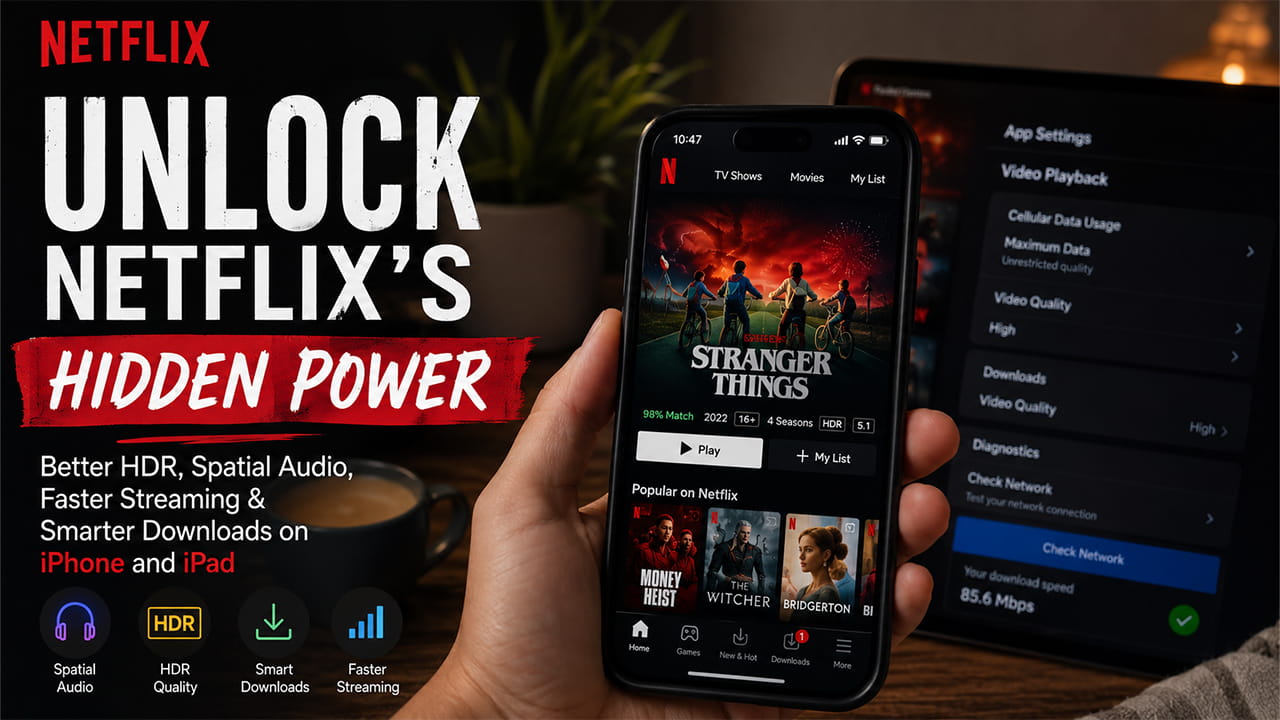
1. Enable Spatial Audio and Improve Dialogue Quality
Netflix supports Dolby Atmos and Spatial Audio on supported iPhones, iPads, and headphones. However, the app does not always make it clear whether advanced audio features are actually being used.
Instead of depending on Netflix to show the audio status, users can check it directly through iOS.
Steps
- Connect AirPods Pro, AirPods Max, or supported Beats headphones.
- Swipe down from the top-right corner to open Control Center.
- Press and hold the Volume slider.
- Check the audio information displayed on the screen.
If the screen shows Spatialize Stereo, Netflix is sending a standard stereo audio track and iOS is creating a virtual surround sound effect.
To use the correct audio format:
- Open the Netflix player.
- Tap Audio & Subtitles.
- Select Dolby Atmos or 5.1 Audio if available.
After selecting the correct track, the Control Center should display Spatial Audio Active.
Extra Audio Tip
Many movies have loud action scenes and quiet conversations. This can make dialogue difficult to hear.
To improve voice clarity:
- Open Settings.
- Tap Accessibility.
- Select Audio/Visual.
- Open Headphone Accommodations.
- Turn the feature on.
- Choose Vocal Range.
This setting boosts speech frequencies and makes dialogue easier to understand without increasing overall volume.
2. Remove Mobile Data Streaming Limits
Netflix automatically reduces streaming quality on mobile networks to save data. Even users with fast 5G connections may not receive the highest available video quality.
To allow Netflix to use more data and deliver better picture quality, users can change the cellular streaming settings.
Streaming Settings Comparison
| Setting | Resolution Limit | Average Data Usage | Best For |
|---|---|---|---|
| Automatic | Usually 480p to 720p | About 1 GB every 4 hours | General use |
| Save Data | 480p maximum | About 1 GB every 6 hours | Limited data plans |
| Maximum Data | Highest available quality | More than 3 GB per hour | Unlimited data plans |
Steps
- Open Netflix.
- Tap the profile icon.
- Open App Settings.
- Find Cellular Data Usage under Video Playback.
- Turn off Automatic.
- Select Maximum Data.
This allows Netflix to stream at the highest quality supported by the device, connection speed, and subscription plan. Supported devices may receive higher-bitrate 1080p or 4K HDR streams when network conditions are good.
3. Improve Download Quality for HDR Viewing
Many users download content before traveling or when internet access is limited. However, Netflix uses Standard Quality downloads by default, which focus on saving storage space.
To get better picture quality during offline viewing, download settings should be adjusted.
Steps
- Open Netflix.
- Go to App Settings.
- Find the Downloads section.
- Tap Video Quality.
- Change the setting from Standard to High.
Download Quality Comparison
Standard Quality
- Uses AVC (H.264)
- Lower video quality
- Smaller file sizes
- Around 250 MB per hour
High Quality
- Uses HEVC (H.265)
- Higher video quality
- Larger file sizes
- More than 1.5 GB per hour in some cases
- Supports HDR formats on compatible devices
HEVC decoding is supported by modern iPhones and iPads. It allows better compression while maintaining image quality. It also supports 10-bit color, making HDR10 and Dolby Vision content look better during offline playback.
4. Use the Hidden Network Diagnostics Tool
When Netflix buffers, becomes blurry, or suddenly drops quality, it can be difficult to know the cause.
The iOS app includes a built-in diagnostic tool that can help identify network issues.
Steps
- Open Netflix.
- Tap the profile icon.
- Open App Settings.
- Scroll to the bottom.
- Find the Diagnostics section.
- Tap Check Network.
Netflix will run a connection test and display network information.
The test can help identify:
- Slow internet speeds
- Connection stability issues
- Network congestion
- Problems connecting to Netflix servers
- Performance issues related to iCloud Private Relay
If connection speeds fall below roughly 15 Mbps, high-bitrate HDR streaming may not perform well.
5. Access Hidden Netflix Categories on iOS
Netflix contains thousands of categories and subcategories. However, most of them do not appear inside the normal app interface.
Many users know about Netflix’s secret category codes on desktop browsers, but these categories can also be opened on iPhone and iPad.
Steps
- Open Safari or Chrome.
- Enter the following address:netflix.com/browse/genre/CODE
- Replace CODE with the category number you want.
Examples:
- 1365 = Action & Adventure
- 7627 = Cult Sci-Fi
After opening the page, iOS may automatically launch the Netflix app and take the user directly to that category.
This method makes it easier to find hidden collections that are not always shown in recommendations.
Troubleshooting Common Netflix Playback Problems
Error Code CM:17001
Cause
This error may appear when downloaded content becomes out of sync with offline licenses after an iOS update or storage change.
Fix
- Open App Settings.
- Tap Delete All Downloads.
- Close Netflix completely.
- Restart the device.
- Download the content again.
This process refreshes download information and may solve the issue.
Washed-Out HDR or Color Banding
Cause
Display settings such as True Tone and Night Shift can sometimes affect how HDR content appears.
Fix
- Open Control Center.
- Press and hold the Brightness slider.
- Turn off True Tone.
- Turn off Night Shift.
- Restart the HDR video.
This can improve color accuracy and reduce unwanted display adjustments during playback.
Discovering Content with Apps Like Dooflix on iOS
Improving Netflix playback quality is only part of the streaming experience. Finding new movies and TV shows can also take time, especially when content is spread across multiple platforms.
Because of this, many users look for companion apps that help organize watchlists, track content, and discover new entertainment.
One name that often appears in online discussions is Dooflix. Many users search for a Dooflix iOS app when looking for entertainment discovery tools. However, users should be careful before downloading apps from unofficial websites.
The Apple App Store does not normally host standard versions of Dooflix. Because of this, some websites may promote modified IPA files, unofficial installers, or enterprise profiles that attempt to bypass Apple’s normal security system.
Installing software from unknown sources can create security risks. These apps may request unnecessary permissions, expose personal information, or affect device stability. In some cases, unofficial applications may stop working after iOS updates or security changes.
For users who simply want to organize watchlists and discover content, safer alternatives are available through official app stores. Apps such as Duoflix, which helps couples build shared watchlists, and Letterboxd, which focuses on movie discovery and tracking, provide structured content databases without requiring changes to iOS security settings.
Using trusted applications helps users manage entertainment libraries, track movies and TV shows, and discover new content while keeping device security intact.
Final Thoughts
Netflix on iPhone and iPad includes many useful features that most users never notice. Small changes to audio settings, streaming quality, download options, and network diagnostics can make a significant difference in everyday viewing.
Whether the goal is clearer dialogue, better HDR playback, higher-quality downloads, reduced troubleshooting time, or improved content discovery, these hidden settings can help users get more from Netflix without upgrading their devices or changing their subscription.