Moving files from one device to another used to take a lot of time. Bluetooth was slow. Cloud storage needed an internet connection. USB cables were not always available. Because of that, sharing large files often became frustrating.
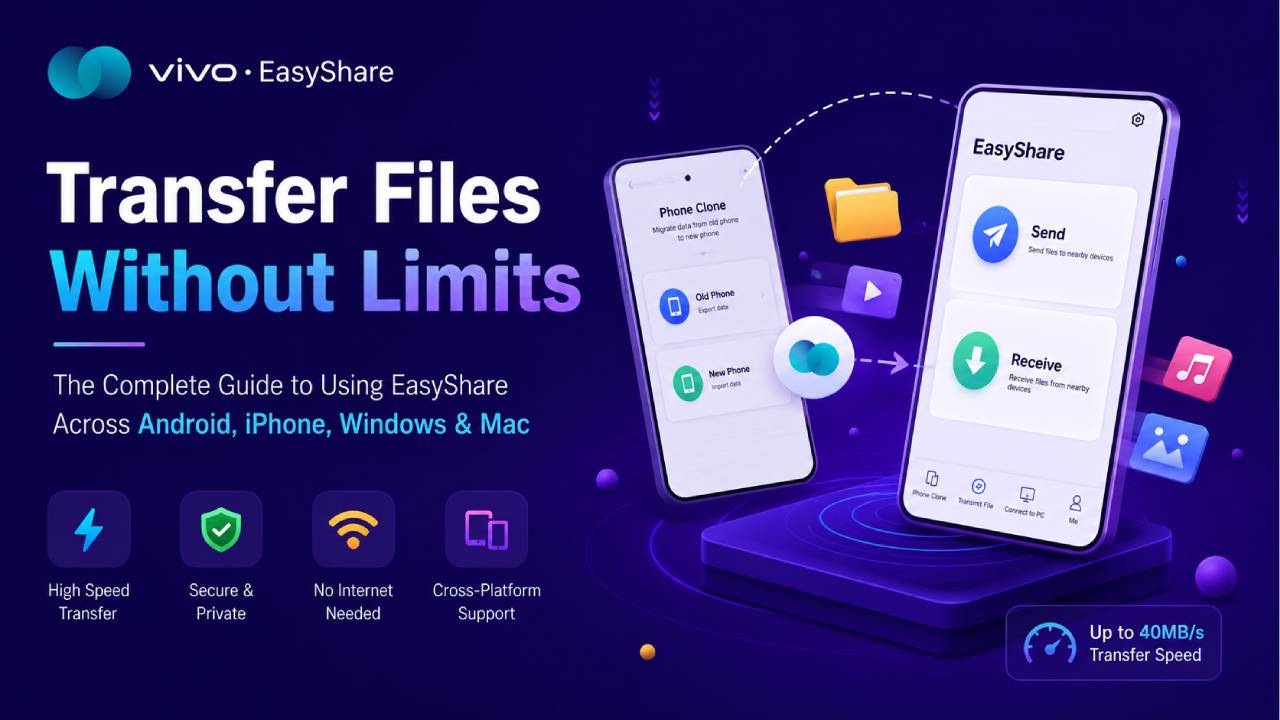
EasyShare changes that experience. Vivo developed this file-sharing app to make transfers much faster and easier. The app creates a direct wireless connection between devices by using Wi-Fi Direct. So, files move directly from one device to another. As a result, there is no need for mobile data or an internet connection during the transfer. EasyShare can also reach transfer speeds of up to 40 MB/s under good conditions.
The app works well in many situations. It can move data from an old phone to a new one. It can send photos, videos, documents, and apps between nearby devices. It also supports file transfers between Android, iPhone, Windows, and Mac devices. This guide explains How To Use EasyShare in simple steps.
Technical Requirements Before You Start
Before starting any transfer, prepare both devices properly. These simple checks help keep the connection stable and reduce the chance of transfer problems.
Charge Both Devices
Make sure both devices have at least 50% battery. High-speed wireless transfers use the processor and wireless hardware continuously. If the battery becomes too low, the transfer may stop before it finishes.
Turn Off Battery Saver and VPN
Battery Saver Mode can reduce the performance of background services. As a result, the transfer speed may become slower or the connection may become unstable.
Also, turn off any active VPN connection. A VPN can change local network routing. Because of that, EasyShare may not find the other device correctly.
Allow the Required Permissions
The first time EasyShare opens, it asks for several permissions. Allow access to:
- Location
- Storage or Files
- Nearby Devices
These permissions help EasyShare find nearby devices and access files. On newer Android versions, Location permission is also required for scanning nearby Wi-Fi Direct connections.
Scenario 1: Use Phone Clone When Moving to a New Phone
Phone Clone helps copy important data from an old phone to a new one. It can transfer contacts, messages, call history, photos, videos, documents, and supported apps.
The process is simple and usually takes only a few steps.
Step 1: Open Phone Clone
Open EasyShare on both phones.
From the main screen, select Phone Clone.
Step 2: Choose the Device Roles
On the old phone, tap Old Phone.
On the new phone, tap New Phone.
Next, choose the operating system of the old phone. For example, select Android or iPhone.
Step 3: Connect Both Devices
The old phone creates a temporary Wi-Fi connection.
A QR code appears on its screen.
Use the new phone to scan that QR code. This creates a secure connection between both devices.
Step 4: Choose the Data to Transfer
After the connection is ready, choose the data that should move to the new phone.
Available options usually include:
- Contacts
- Messages
- Call Logs
- Photos
- Videos
- Documents
- Apps
If the old phone uses a screen lock, enter the PIN, password, or pattern when requested. This allows EasyShare to access protected data.
Step 5: Start the Transfer
Tap Start Phone Clone.
Keep both phones close together.
Do not lock either screen.
Also, do not close EasyShare until the transfer finishes completely.
When the transfer ends, follow the instructions on the new phone to complete the setup.
Scenario 2: Share Individual Files Quickly
Sometimes there is no need to move everything from one phone to another. Instead, only a few files need to be shared. EasyShare can quickly send photos, videos, documents, APK files, and many other file types.
Step 1: Open the File Transfer Option
Open EasyShare on both devices.
On the sending device, select Transmit File, then tap Send.
On the receiving device, select Transmit File, then tap Receive.
Step 2: Connect the Devices
The sending device starts searching for nearby devices.
When the receiving device appears on the screen, tap its icon.
The receiving device shows a connection request.
Tap Allow or Agree to continue.
Another option is also available. The sender can display a QR code, and the receiver can scan it for a faster connection.
Step 3: Select the Files
Browse through the available categories inside EasyShare.
These may include:
- Apps
- Images
- Videos
- Documents
Choose the files that need to be shared.
Then tap Send.
EasyShare transfers the files directly through the local wireless connection. Therefore, no internet connection or mobile data is used.
Scenario 3: Transfer Files Between Different Platforms
EasyShare supports more than Android devices. It also works with iPhone, Windows, and Mac systems.
Although each platform has different security rules, EasyShare provides simple ways to transfer files between them.
Transfer Between Android and iPhone
Apple devices have different security rules. Because of that, one extra step is needed during the connection.
First, open EasyShare on the Android phone.
Choose Phone Clone or Transmit File.
Then select iPhone or iOS.
The Android phone creates its own wireless hotspot.
Its network name and password appear on the screen.
Next, open Settings on the iPhone.
Go to Wi-Fi.
Connect to the wireless network created by the Android phone.
After that, open EasyShare on the iPhone.
Select Connect Android Phone.
Once both devices connect successfully, file sharing can begin.
Transfer Between a Phone and a Windows PC or Mac
EasyShare also makes it easy to move files between a phone and a computer.
First, connect both the phone and the computer to the same Wi-Fi network.
Next, open EasyShare on the phone.
Select Connect to PC or Web Share.
EasyShare displays a local network address. It usually looks similar to this:
http://192.168.1.X:8080
Open a web browser on the computer.
Type the displayed address into the address bar.
Press Enter.
The EasyShare page opens in the browser.
From there, files can be uploaded to the phone or downloaded to the computer without using cloud storage.
What EasyShare Cannot Transfer
EasyShare can move many types of files. However, every operating system has security rules that prevent certain data from being copied.
The following limits are normal.
Encrypted App Data
EasyShare can usually transfer the app itself.
However, the app’s saved data normally does not transfer.
Many apps store their data inside protected system folders. As a result, users usually need to sign in again after installing the app on the new device.
Banking and Financial Apps
Banking apps cannot be fully transferred.
Security certificates, login tokens, and device verification remain linked to the original phone.
Therefore, these apps must be set up again on the new device.
DRM-Protected Media
Downloaded content from streaming services usually cannot be copied.
For example, offline movies or music downloaded inside streaming apps remain protected.
These files must be downloaded again after signing into the account on the new device.
Instant Messaging Chats
EasyShare can usually transfer the messaging app.
However, chat history normally does not move automatically.
Many messaging apps use end-to-end encryption. Because of that, chats should be transferred by using the backup and restore feature built into the messaging app.
Troubleshooting Common Problems
Most transfers finish without problems. However, connection issues can sometimes happen. The following checks solve many common problems.
Connection Stays at 0%
If EasyShare keeps showing 0% Connecting, another system feature may be interrupting the connection.
Some phones automatically switch to another Wi-Fi network when there is no internet access.
Turn off features such as Smart Wi-Fi Switch, Network Assistant, or similar options in the Wi-Fi settings.
Then reconnect both devices.
Not Enough Storage Space
The transfer may stop if the receiving device does not have enough free storage.
Open Settings > Storage.
Check the available space.
The receiving device should have at least 15% more free space than the size of the incoming files. This extra space helps the system complete the transfer smoothly.
Connection Keeps Dropping
Wireless accessories can sometimes affect the connection.
Disconnect Bluetooth devices such as:
- Smartwatches
- Wireless earbuds
- Bluetooth speakers
Bluetooth and 2.4 GHz Wi-Fi often use similar wireless channels. Because of that, signal interference may reduce transfer stability.
After disconnecting unnecessary Bluetooth devices, start the transfer again.
Final Thoughts
EasyShare provides a fast and simple way to move files between devices without using mobile data or an internet connection. It supports phone upgrades, everyday file sharing, and transfers between Android, iPhone, Windows, and Mac devices. The direct Wi-Fi connection also helps transfer large files much faster than traditional Bluetooth. By preparing both devices correctly and following each step carefully, most transfers finish quickly and without problems.