Running desktop Windows software and modern PC games directly on Android is now much more practical. It is no longer just an experimental idea.
Winlator is an open-source Android app. It translates x86 and x64 instructions into ARM-native calls. It does this with Wine, Box86, Box64, and FEX-Emu.
Recent Winlator versions have received major architecture upgrades. So, users can now get better support for many Windows apps and PC games.
Whether you want to play classic DirectX 9 games or demanding DirectX 11/12 AAA games, the right setup matters. Therefore, understanding the latest Winlator Emulator features, drivers, and container options can help you get better performance.
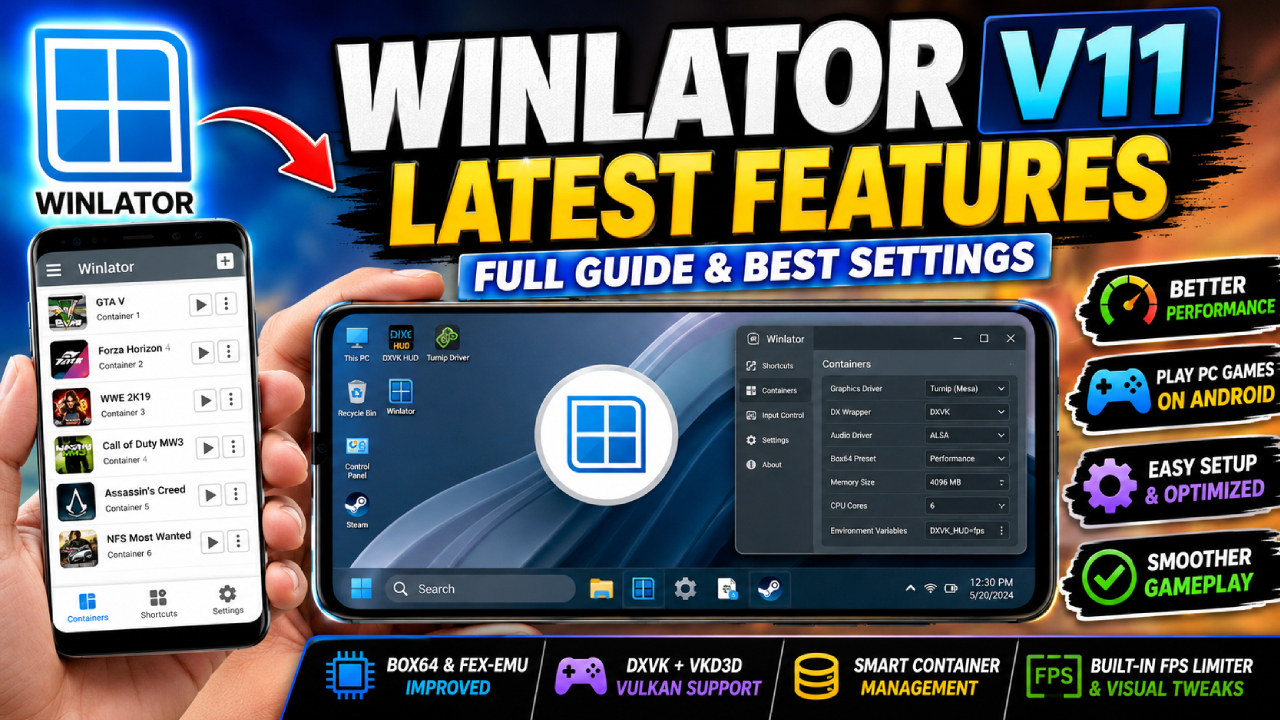
What’s New in the Latest Winlator Release?
Recent Winlator versions focus on reducing translation overhead and improving frame stability. They also add more driver choices and make the user interface easier to use on mobile devices.
Performance & Engine Upgrades
Proton & Wine Runtime Enhancements: Updated default Wine and Proton runtimes include ARM64EC integrations. These updates improve file system I/O speed and make container extraction faster. They also reduce memory use after you close applications.
Advanced Box64 & FEX-Emu Presets: Updated CPU emulation presets improve x86 and x64 instruction translation. As a result, they can fix older physics problems in games such as Assassin’s Creed. They do this without adding a large CPU performance cost.
Hybrid x86 Execution: This option uses software emulation only for certain instructions that may cause problems. For example, it can handle CPU-heavy physics calculations through emulation. Meanwhile, the rest of the execution chain keeps running natively.
Graphics & Driver Integration
Expanded Vulkan Wrappers: Winlator supports updated Turnip (Mesa), VKD3D-Proton, and DXVK versions. These tools translate DirectX 9, 10, 11, and 12 graphics commands into Vulkan.
Native Texture Transcoding (ASTC & BCn): Built-in texture compression and transcoding tools can improve performance. They can also lower VRAM use on both Adreno and Mali GPUs.
Built-in Visual Tweaks & Limiters: Winlator includes a Universal FPS Limiter and per-container Sharpness controls. It also includes FXAA and Fake HDR toggles. In addition, pre-configured DXVK setup profiles can create suitable dxvk.conf files automatically.
UX & Interface Overhaul
Streamlined Container UI: The updated container settings layout is cleaner and easier to understand. Therefore, users can configure graphics drivers, memory splits, and environment variables more easily.
Unified Control Engine: The updated input mapping system combines XInput, DirectInput, and touch controls. It also supports external controller models and custom virtual control layouts.
Integrated File & Cover Art Managers: Built-in shortcut settings can detect installed games automatically. They can also get box art from public metadata sources.
Core Technologies Powering Winlator
Winlator uses several important translation layers to run Windows apps on ARM mobile processors with near-native execution.
| Layer | Component | Core Function |
|---|---|---|
| CPU Emulation | Box86 / Box64 / FEX | Translates x86 32-bit and x64 64-bit Intel/AMD instructions into ARM64 instructions that mobile SoCs can read. |
| OS Compatibility | Wine / Proton | Emulates the Windows API and sends system, audio, input, and file system calls into Android-compatible system requests. |
| DirectX Translation | DXVK / VKD3D | Translates DirectX 9, 10, 11, and 12 graphics commands into Vulkan graphics calls while the software runs. |
| GPU Drivers | Turnip (Mesa) / Zink | Provides open-source Vulkan driver implementations made for Qualcomm Adreno and general GL/Vulkan hardware rendering. |
Setup & Container Configuration Guide
Getting a good balance between game compatibility and high frame rates depends on your device processor. Therefore, you should choose container settings that match your mobile hardware.
Container Settings Matrix
| Hardware Target | Recommended GPU Driver | DX Wrapper | Core Box64 Preset |
| Snapdragon (Adreno 6xx / 7xx) | Turnip (Mesa) | DXVK (v2.x) | Performance / Fast |
| MediaTek Dimensity (Mali) | VirGL / Vortek / Native Vulkan | WineD3D or DXVK (ASTC on) | Compatibility / Standard |
| Exynos / Tensor | System Driver / VirGL | WineD3D / VKD3D | Stability / Safe |
Recommended Setup Workflow
Create Container: Open Winlator and tap the + icon. Then enter your container name and choose a desktop resolution. For example, 1280×720 is recommended for good mobile scaling.
Assign System Memory & CPU Affinity: Choose the CPU cores you want Winlator to use. If you notice stuttering, leave Core 0 free for Android background processes.
Select Graphics Drivers: On Qualcomm devices, choose Turnip as the Graphics Driver and DXVK as the DX Wrapper. For Mali-based SoCs, choose native drivers or Vortek.
Environment Variables: Add custom environment flags when needed. For example, use DXVK_HUD=fps to watch frame rates. You can also use MVK_ALLOW_GPU_OVERLAP=1 for Vulkan tweaks.
Install & Run: Start the container desktop. Then open your game installer folder. The D:\ drive maps to your download folder. Finally, run the setup file.
Troubleshooting & Optimization Bottlenecks
Black Screen on Launch: An incompatible DXVK version can often cause a black screen. If this happens, change the DX Wrapper in the container properties. Switch from DXVK to WineD3D or try an older DXVK build.
High RAM Usage / App Crash: Winlator may suddenly close when memory use becomes too high. Make sure your device has at least 6GB to 8GB of physical RAM. Also, lower the container resolution to 720p or 1024×768 to reduce VRAM pressure.
Stuttering / Heavy Frame Drops: Check the Box64 preset in the container settings. Try changing from Safe or Compatibility mode to Performance mode. Also, make sure your Turnip driver build matches your Snapdragon generation.
Physics & Scripting Bugs: Some games connect physics calculations to x86 precision flags. For these games, enable Hybrid x86. You can also turn off x86 Reduced Precision in Container Advanced Settings.