Managing compressed files on Android can feel annoying sometimes. Many default file managers have limited tools. On the other hand, many third-party apps show too many ads or slow down the device. That is why many Android users prefer ZArchiver Donate.
This is the premium version of the popular ZArchiver app. It gives better control over compressed files, split archives, and hidden Android folders. The app is made for users who want smooth file management without interruptions.
This guide explains how to use the advanced features of ZArchiver Donate in a simple and practical way.
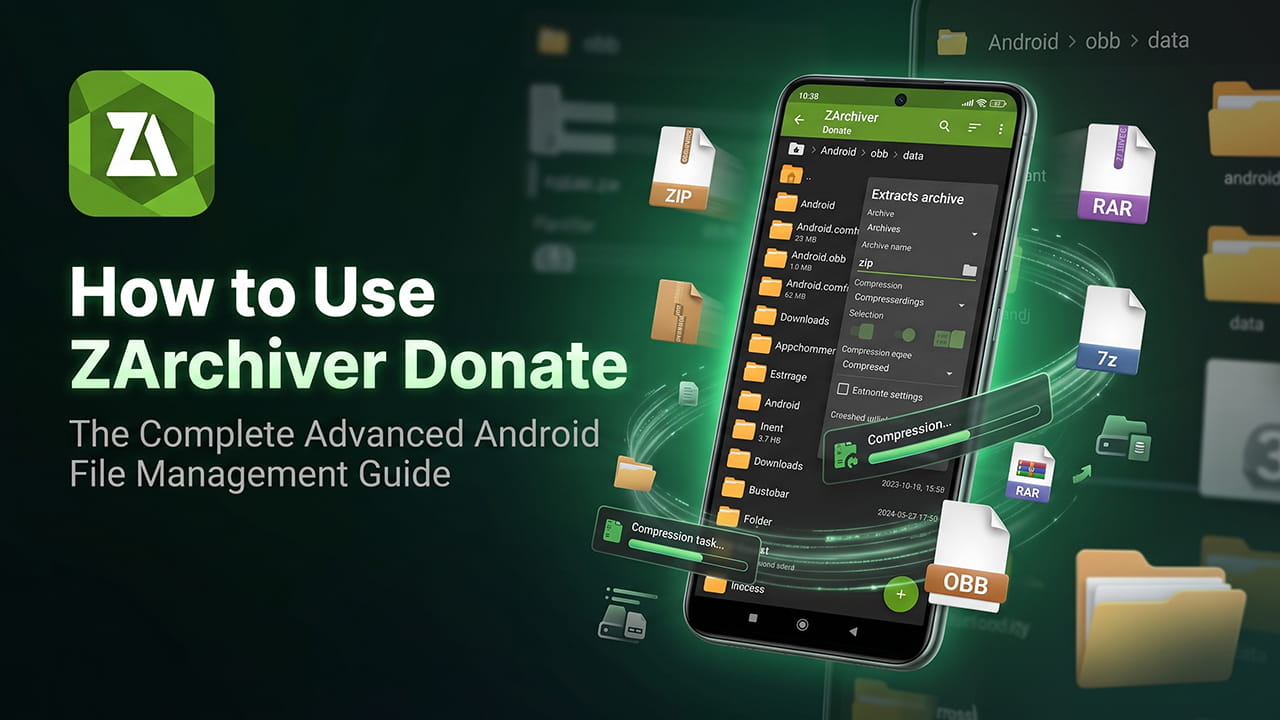
What Is ZArchiver Donate?
ZArchiver Donate is a paid version of ZArchiver. It supports the developer and also unlocks extra features that are not available in the normal version.
The app helps users create, open, edit, and extract compressed files directly on Android devices. It supports many archive formats like ZIP, 7z, RAR, TAR, GZIP, and more.
Unlike many file manager apps, this app works without ads. Because of that, the interface stays clean and fast.
Why Upgrade to ZArchiver Donate?
The normal version already handles basic archive tasks. However, ZArchiver Donate adds more powerful features for advanced users.
Direct Archive Editing
Files inside an archive can be changed without fully extracting the folder first.
This saves time and reduces extra storage usage.
For example, files can be added, deleted, or replaced directly inside a ZIP or 7z archive.
Advanced Themes
The app includes extra themes and color settings.
Users can switch between dark mode, light mode, or custom colors based on personal preference.
This also improves visibility during long file management sessions.
Better Memory Handling
Large archives sometimes crash weaker apps. ZArchiver Donate improves memory handling for huge compressed files.
Multi-gigabyte archives can open and extract more smoothly on supported devices.
No Ads
Many Android apps show popups and video ads during file extraction.
ZArchiver Donate removes all advertisements completely. This creates a cleaner and faster experience.
How to Create Password-Protected Archives
Password protection is useful for private files, backups, or cloud uploads.
This tool supports strong encryption methods for better security.
Step 1: Open the App
Launch ZArchiver Donate and move to the folder that contains the files.
Step 2: Start Archive Creation
Tap the “+” button.
Then choose “Create Archive.”
Another method is to long-press a folder and select archive options directly.
Step 3: Select Archive Format
Choose the format carefully.
- Select 7z for stronger compression.
- Select ZIP for better compatibility with other devices.
Step 4: Add a Password
Find the password section and enter a secure password.
Strong passwords improve file protection.
Step 5: Enable AES-256 Encryption
Choose AES-256 encryption for sensitive data.
AES-256 is a strong encryption method used for secure archives.
After that, tap OK to begin compression.
How to Extract Split Archives
Large files are often divided into smaller parts before sharing online.
These are called split archives.
Common formats include:
.7z.001.zip.001.z01.z02
ZArchiver Donate handles these files automatically.
Step 1: Keep All Parts Together
All archive parts must stay inside the same folder.
Missing parts can cause extraction failure.
Step 2: Open the First File Only
Tap only the first archive file.
Example:
archive.7z.001
Do not open the later parts manually.
Step 3: Choose Extraction Option
Select:
- “Extract here”
- or “Extract to ./Folder Name”
Step 4: Automatic Merging
ZArchiver Donate automatically detects the remaining parts.
Then the app combines them into one complete folder.
This process usually works without extra setup.
How to Edit Files Inside an Archive
One major feature of ZArchiver Donate is direct archive editing.
Files can be managed without unpacking the whole archive first.
This reduces storage usage and saves time.
Step 1: Open the Archive
Tap the archive file.
Then select “View.”
Step 2: Delete Files
Long-press a file inside the archive.
Then choose “Delete.”
The file will be removed directly from the archive.
Step 3: Add New Files
While inside the archive view, tap the “+” icon.
Select files from internal storage.
The app inserts them directly into the archive.
No full extraction is needed.
Accessing Android OBB and Data Folders
Modern Android versions restrict access to some system folders.
This includes:
Android/dataAndroid/obb
These folders often store game files, cache data, and application resources.
Many normal file managers cannot modify them properly.
ZArchiver Donate works with Android storage permissions to access these folders safely.
How to Unlock Restricted Android Folders
Step 1: Open the Android Folder
Inside the app, navigate to:
Internal Storage > Android > obb
or
Internal Storage > Android > data
Step 2: Accept the Permission Request
Android may show a warning message.
The message usually says permission is required.
Tap OK.
Step 3: Use the Storage Access Framework
Android opens the Storage Access Framework window.
Tap:
“Use this folder”
Then press:
“Allow”
Step 4: Manage Files Normally
After permission is granted, files can be copied, moved, extracted, or pasted inside these folders.
Root access is not required for this process.
Best Settings for Faster Performance
Some internal settings can improve compression and extraction speed.
These settings help especially when working with large archives.
| Setting | Recommended Option | Purpose |
|---|---|---|
| CPU Cores | Set to Maximum | Improves compression speed |
| Extraction Path | Custom Folder | Keeps storage organized |
| Root Access | Enable only if rooted | Allows system-level access |
How to Change Settings
Step 1: Open Settings
Tap the three-dot menu in the top corner.
Then open “Settings.”
Step 2: Explore Compression Settings
Inside the settings menu, users can adjust:
- Compression level
- CPU thread usage
- Default archive format
- Extraction location
Step 3: Save Changes
After changing settings, return to the main screen.
The new settings apply automatically.
Common Problems and Solutions
Why Does a CRC Error Appear?
A CRC error usually means the archive file is damaged.
This often happens because of interrupted downloads or missing archive parts.
Downloading the file again normally fixes the issue.
Can ZArchiver Donate Open RAR5 Files?
Yes.
This supports extraction of RAR and RAR5 archives.
However, the app cannot create RAR archives because of RAR licensing restrictions.
Does ZArchiver Donate Need Root Access?
No.
The app works properly on non-rooted Android devices.
Root access is optional and mainly useful for advanced system-level file management.
Final Thoughts
ZArchiver Donate is one of the most useful archive management tools available for Android users. The app handles compressed files smoothly while keeping the interface simple and clean.
Its advanced features help users manage split archives, encrypted files, and restricted Android folders without extra tools. Direct archive editing also saves storage space and reduces unnecessary extraction work.
For users who regularly work with ZIP, 7z, RAR, OBB, or large archive files, this app provides a stable and efficient solution without ads or unnecessary distractions.